If the video above is not playing, something in your browser is probably blocking YouTube. You can watch it on YouTube or read the written version below.
Clean up your Downloads folder without touching your mouse
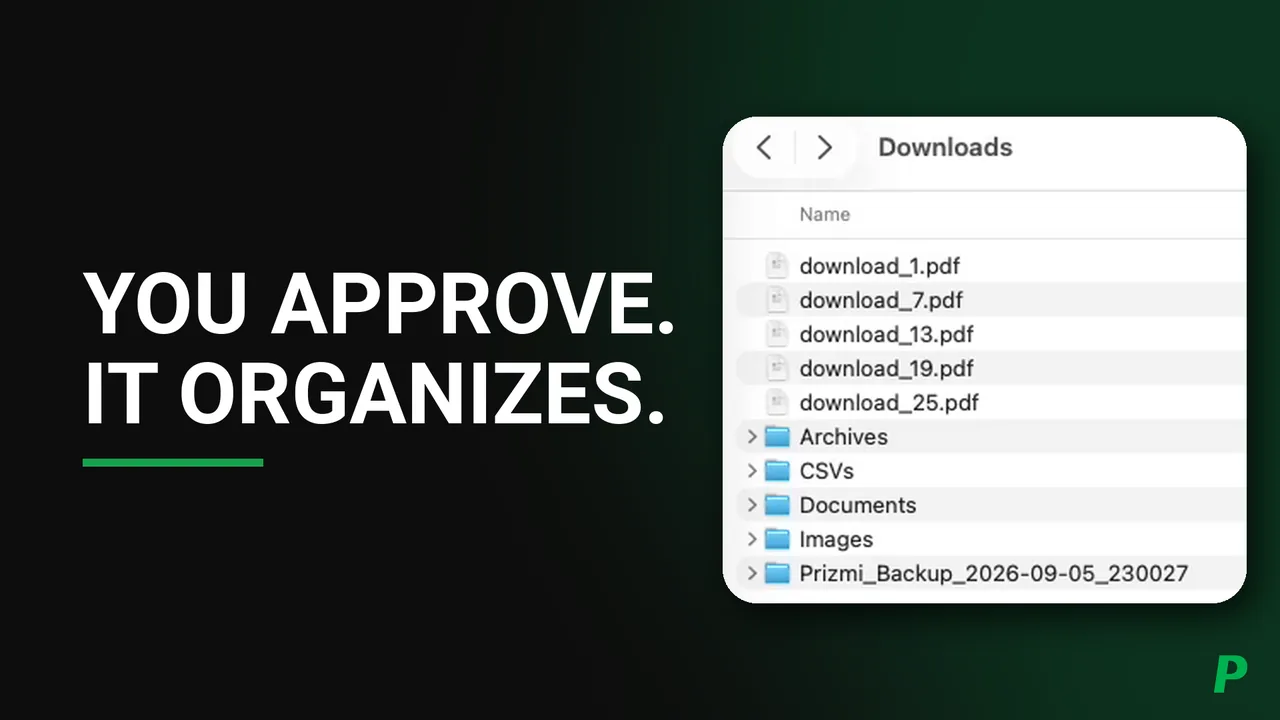
A Downloads folder with thirty-three files in it, sorted into subfolders by type, without the mouse moving once.
Nothing moves until you say so. Prizmi writes a plan first, and you can change it in plain language, which is what happens here, so the PDFs stay exactly where they are. A backup of the folder is made before any file moves, so a result you do not like can be undone.
The rest of the video is about getting files to and from the computer while you are away from it. Reading one with end-to-end encryption, so only the device that asked can open it, tested here by opening the same chat on a phone and finding it still locked. And writing a file back the other way.
In this video
Transcript
Read what’s said in this video
Today, I'll show you how you can use Prizmi to organize your files and folders without touching your mouse. I'll also show you how you can get the content of a file from your computer in the most secure way using end-to-end encryption. Additionally, I'll show you how you can write a file to your computer remotely. In my opinion, these all could be very helpful.
We are all guilty of piling up a bunch of files in our Downloads folder over time without taking the time to organize them. We may have an elderly parent who may not be as technical, and we may want them to securely send us a file from their computer. Prizmi will help solve all those problems. Once you sign up, you will be able to connect your parent's computer to your account to help them get things done.
Prizmi has many skills related to handling your files and folders. The main skill is the File Organizer skill. By default, all but one of the file related skills are enabled, so you don't have to do anything; you can just ask Prizmi what you would want to be done, and Prizmi will use an appropriate skill to get that work done. The only thing you need to know, or to be aware of, is that Prizmi will always create a backup. And by default, it won't delete files. As you can see here. It does have a Delete File skill, but it's disabled by default. If you need, you can enable it. In general, if you want to delete some files, you can just ask Prizmi to do it. Prizmi will then find the files you want to delete and put them in one folder, which you can then delete yourself. We've included the Delete File skill so Prizmi has a complete skill set, but in over 99+% of cases, you won't need to enable this skill. In this tutorial, my assumption is that you've already signed up and connected your computer. If you haven't done it, you can just watch our tutorial on setting up Prizmi, or you can just go ahead and sign up. It's extremely simple and requires no technical background. So with that, let's get started.
All right, as you can see here, I've already set up Prizmi, and I connected my computer to my account. My computer name is "mac", and I gave Prizmi access to the Downloads folder. I covered all of this in detail in our onboarding tutorial. If you need, please go ahead and watch that tutorial first.
Looking at our Downloads folder, this is what we created to resemble an actual Downloads folder for many of you, with different file types. These are just sample files, which we'll be using today to understand how we can better organize our files and leverage Prizmi. So, to do that, we go to our dashboard and we open a chat window. You can either use your browser or you can use Telegram, whatever works best for you.
So let's get started. First I can just ask Prizmi which folders it has access to, to see what comes back, and then we can ask Prizmi to, for example, organize our Downloads folder by file type. So, let me ask for "which folders do you have access to?" We send it. And it would ask us to approve. This is because it's using the File Organizer skill, which requires approval. You know, it's up to you. You can always go ahead and disable approval for any skill that you want. So, as you can see here, it says I currently have access to the Downloads folder. And, you know, it also tells you how you can adjust permissions. Going back to our app here, we see that that's exactly what we gave access to.
So, the next thing that we can ask, we can ask Prizmi to list files in our Downloads folder. As you can see here, you don't have to do anything as far as the skills are involved because they are by default already enabled. You can just ask Prizmi what you want and it's able to get the work done. So it's going to check what files are there. And as you can see here, it says the files in the Downloads folder have been listed. There are 33 items in the directory, and here are the details. Isn't it awesome? So, a total of 33 files exist in our folder, basically.
So now, what I want for Prizmi to do, I want Prizmi to organize files in our Downloads folder by file type. As you can see here, we have some images, we have some zip files, JPEG files, CSV files, PDF files, text files, you name it. So, what I want Prizmi to do is to organize my Downloads folder by file type. So that's what I would ask: "organize my Downloads folder by file type". And it asks you to approve it. So what will Prizmi do? Before it acts, it first goes ahead and does some analysis, and it would then create a plan, so you can review it. If you want, you can even adjust it to make sure the end result is aligned with what you are looking for. So here it says, "I'll organize the 33 files in the Downloads folder into new subfolders, images, documents, archives, PDF, CSVs, based on the file type", and it says "a backup of the current folder will be created before I begin". So as you see here, it's a very reasonable plan.
But, you know, I want to show you how you can adjust the plan. For example, in this case, I want Prizmi to do what it proposed, but I just want it to not touch the PDF files in this example. So, you could just say: your plan looks good, but just don't touch the PDF files. That's it. So basically you are saying I want you to go ahead, but the only thing I want is for you to not touch the PDF files. So Prizmi will go ahead and adjust the plan that it created, and it would again check with you to make sure everything looks good. Then you will have the chance to modify again if you want, approve or deny. So in this case, it says I'll organize your Downloads folder by creating subfolders for images, documents, archives, and CSVs. I'll move 28 files based on their type and ensure that your 5 PDF files are not touched, and it says I would create a backup. Which is, you know, what we want in this case.
So what we would do is approve it, and Prizmi would then go ahead and get the work done. So now we can go here and watch how it works, and you can, you know, if you want, go back and forth in case it needs anything from you. If it does, then you can simply get a notification. As you see, it created the backup folder first and then it moved the files into the subfolders, and it didn't touch the PDF files. So as you see here, there is a backup folder, which proves Prizmi saved the state of our folder before it moved the files. So that way, in case, you know, something doesn't align with what we are looking for, then we would have the backup folder that we had in the first place.
So I see that there are 5 PDF files that are untouched, then you have archive files, which are the zip files, as expected, we have the CSV files, as we had before, document files, as we had before, and images, the JPG and PNG files as we had in our original folder. As you saw, it was very quick and you didn't even need to touch your mouse. This is very cool because now you have an assistant that can really help you organize your files. So now that we saw that things worked as expected, we can just simply go here and either delete the backup folder or move it into the trash. Instead of having a messy Downloads folder, we now have a very clear and clean and tidy Downloads folder. And going back, Prizmi says that it completed the work, as you see here. It says that your folder has been successfully organized into subfolders by type, excluding the PDF files as we requested. And it created a full report for us, and it also said a full backup was created, and it gave us the folder name as we saw there. So, this is great, and it's a very realistic situation that you may face in day-to-day work.
Great. The next thing I want to show you is how you can read a file from your computer in a secure manner. Let's say you are on the go and you want to get access to a file that is located on your computer, or for example, you are trying to help your elderly parents who need to send you a file from their computer, but they may not be as technical. You can basically connect their computer to your account, set up permissions, and that way you can help them send files to you. So, if you recall, this is how our Downloads folder looks like. We have a folder called documents that was just created. And let's say we want to read the content of one of these files, that would be, for example, this notes_2.txt file. Now, how can we do that when we are on the go? We obviously don't know the content of the folder. So what we can do, we can first ask Prizmi to list the files under the Documents folder. Please list the files under Downloads/Documents. So Prizmi would go ahead and get you a list of files that you have in that folder. And here is the list. If you compare this with what we have here, the list would be quite consistent. Now, what I want is, I want Prizmi to read the notes_2.txt file for me in a secure way. So I'll just ask Prizmi, please read the file for me. And then Prizmi would go ahead, and because by default the Read File skill is end-to-end encrypted, you would get the encrypted result in your chat. So as you see, this is the same content that we had here, and it is decrypted for you. So it says, I've read the notes_2.txt and sent it to this chat as an encrypted card because the file contents are set to stay private on this computer. Only your Prizmi app can unlock it, meaning that nobody in between can open the content of the file. What this means is that only the device requesting the file can see the result.
So now, if I switch to my phone where I'm on the same chat, you will see that the content of the file cannot be shown in my chat, even though it's my account, because it's a different device. That's why it's end-to-end encrypted, and it says these secure results can only be opened by the device that requested them. So you can see the result on this computer, but you do not see the result on another device. That's why it's so secure. Nobody in between can get access to your file.
So now the next thing I want to show is another request. As you see, we have these files here, because we did not create a folder for the PDF files. So I want to ask Prizmi to move the PDF files into a separate folder. So I can just go here and first ask Prizmi to list the files in my Downloads folder, so I get an idea of what it looks like in case I forgot. And here we go. We have the files, we have the images directory with these files, and then we have the archives and documents and CSV and the additional PDF files. So I want to ask Prizmi to move the PDF files to a folder. So, "please move the PDF files into a folder called PDF". So, we would just make things a little bit more tidy. Obviously, this is just a small example and in reality, you can handle very large folders and many many files that you need to move without touching the mouse. So we give it a little time, so it goes and moves them to a new folder. As you see, the files have been moved to a new folder; we created a folder called Downloads/PDF and moved 5 files there. And a backup was also created. So if you go back, you see that, you know, the PDF folder was created and there is a backup folder that was saved with the files we had before. Now that we are happy, then we can just move these to the trash. Now everything is clean and tidy for us. So what I showed are a few examples and, you know, you are only limited by your imagination. Basically, you can handle your file and folder operations using Prizmi and you don't have to worry about your files and folders being untidy, and you don't even need to touch your mouse. You can just talk to Prizmi and it would handle things for you, and you don't have to worry about a file or folder being deleted, because Prizmi would not delete your files and folders by default. It would just create a backup folder for you.
Great. The last thing I want to show you is writing a file to your computer using Prizmi remotely. So what we have in our Downloads folder is this folder structure. As you can see, there is no text file. Let's say we want Prizmi to take some content and write it into a text file for us. So how can we do that?
We can just ask Prizmi to do it. So, "please create a file named test.txt, using the following content, in my Downloads folder". And then the content would be, "this is a test file for Write File skill". So basically, what we do is just ask Prizmi to write a file remotely, using a given content, to our computer.
So now I send this. And it would ask us to approve. And it says, I wrote the file, and this is the size of the file.
Now, if I go here, I see the file shows up here. And this is a test file for the Write File skill. Awesome.
So, now you know how you can easily write files to your computer using Prizmi. This would be very helpful for cases where you want to transfer, you know, some data between computers, and this would be a great and secure way to do that.
I hope you find this tutorial useful, and please remember to like and subscribe. We'll make plenty of tutorials for all of Prizmi's skills, and that way you'll get notified right away. If you have any questions about the video, please let us know in the comment section below. And if you have any questions about your account, please feel free to use the contact page.
Thank you, and have a great day.
Questions about this video?
Ask in the comments on YouTube and we’ll answer there, so the next person who wonders the same thing finds it too. If it’s about your own account, use the contact form instead so nothing private ends up in public.