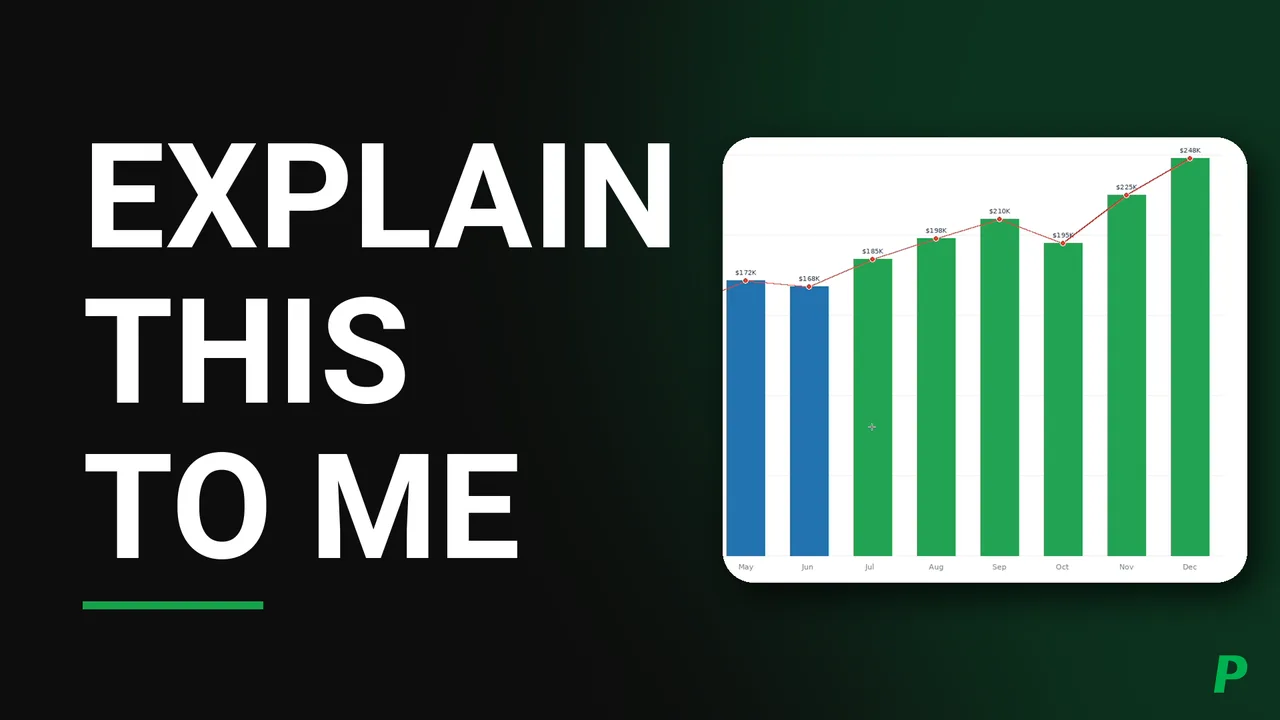
If the video above is not playing, something in your browser is probably blocking YouTube. You can watch it on YouTube or read the written version below.
Can AI see your screen? Only when you ask
Prizmi can look at what is on your screen and answer questions about it, which saves the usual routine of screenshotting something yourself, explaining the situation to a chatbot, and pasting the answer back.
It only looks when you ask. Every capture needs your approval, and the snapshot is sent to your chat so you can see exactly what was read. Asking for a screenshot on its own can be end-to-end encrypted, so only the device that asked can open it. Analysis is the one case that cannot be, because the model has to read the image to explain it, and the video shows both sides of that.
The video covers four examples end-to-end: a coding question on LeetCode, an error in a terminal, a reply to a recruiter that needed to say one thing without implying another, and analyzing a chart.
Along the way, granting screen recording permission on macOS, three ways to do this when you only have one monitor, approving from your phone, saving a prompt you retype as a shortcut, and asking for the answer to land in your clipboard.
In this video
Transcript
Read what’s said in this video
In this video, I'm excited to show how you can use Prizmi to get help with your screen. If you've used chatbots before, I'm sure you've found yourself in situations where you want the chatbot to help but then you need to do a lot of work to explain things. In many cases, you have to manually create a snapshot and then explain the situation and then copy and paste the answer. With Prizmi, you can solve all those issues. You can ask Prizmi to look at your computer screen, analyze it, and answer any questions you may have. For example, you can ask Prizmi to solve a coding question on your screen, help debug errors, give advice on message replies, and many other use cases.
Prizmi will never take a snapshot of your computer without you asking for it. Whenever Prizmi takes a snapshot, it will always send it to your chat so you know what Prizmi looked at when analyzing your screen. In this tutorial, my assumption is that you've already signed up and connected your computer. If you haven't done it, you can just watch our tutorial on setting up Prizmi, or you can just go ahead and sign up. It's extremely simple and requires no technical background. So with that, let's get started.
As you see here, the skill that allows Prizmi to help with your screen is called Screen Helper. We've added some examples here to help you get started. You can always click on these examples to copy them into your clipboard. Today, I'll show you how these work in practice. By default, "Treat as sensitive" is toggled off for this Screen Helper skill. This is because Prizmi needs to see your screen in order to analyze it. That said, if you only need Prizmi to send you a screenshot of your computer, you can toggle this on. That way, the screenshot image will be end-to-end encrypted and only your device can open it. To show this to you in practice, I'm going to toggle this on, and ask Prizmi to send me a screenshot of my computer.
So to do that, I open a chat window. Now I ask Prizmi to send me a screenshot of my computer to see what happens. So, in case you have more than one connected device, you can mention the name of your device to Prizmi. In this case, you know, my device name connected to Prizmi is my Mac, which is the same I have here. So this is the name of the device. So if I have a Mac and a Linux and a Windows, then I can ask Prizmi, send me a screenshot of my Mac or my Windows or whatever name you chose for your device. It doesn't have to be based on the operating system. It's just more convenient, so you can choose whatever name, and then you ask Prizmi for the name of the device that you want Prizmi to send you a screenshot of. So I send this. And it would ask you to approve it, and this is because, by default, the approval is on for Screen Helper.
And as you see here, it's telling me that the permission is not granted on this Mac, and in this case, it's good that we got here. What we need to do is go to the OS level permission, and this is the permission that you need to provide. So, Screen Recording for Prizmi Link allows Prizmi to capture your screen remotely. This is needed for macOS, and I believe on Windows and Linux you don't need to grant permission, but in this case, I'm just going to go ahead and do it. So you would just click and then I'll toggle this on and you provide your password. And it would ask you to quit and reopen. You just click.
This one is already done. And now, if I open Prizmi again, it says that permission granted. Now, what I can do, I can just go back to the app again and ask, "please try again". Prizmi would remember what you asked. So it would ask you to approve. And the first time, you get this notification on macOS, and you always say allow.
And now what you see here is basically the screenshot of your computer that is being sent to you, and in this case, as this lock indicates, this is end-to-end encrypted. That means if you open the same chat on another device, you wouldn't be able to see the screenshot. So this is extremely secure.
Great. So now, I want to show you some more examples. So I go to skills and Screen Helper, and we have a few examples. So this is what we did, because we just needed the screenshot and no analysis. Then Prizmi just sent the screenshot. Now, if we ask Prizmi to analyze it and the end-to-end encryption is on, it won't be able to do it, because with end-to-end encryption nobody in between can see the image. So I'm going to toggle this off because my next examples would involve looking at the screenshot and solving questions.
So before we begin our next example, let me quickly show you what the same chat looks like on my phone. As you see here, because the results were end-to-end encrypted, I can see the results on my MacBook, but I cannot see them on my phone, because only the device that requested the screenshot can decrypt it. That's why it's end-to-end encrypted.
Now, the next example that I want to show you is asking Prizmi to solve a coding question for us. Now, in Screen Helper Prizmi needs to take a snapshot of your computer and then analyze what's on it, right? So now if you wanted to do this on one computer, how would you go about this?
So ideally, you know, you would have two monitors connected and Prizmi would always take a screenshot of your main monitor. So that way you can have a chat window open in your second monitor, and then you can ask Prizmi to look at your computer, and then it would take a snapshot of your main screen, and then you can also go ahead and do the approval, right? And so that would be one way of doing this.
The second way of doing this would be doing the approval on your phone. So because your chats would be all synced at the same time, you would ask Prizmi to do something on your screen, and then you send it. Because Prizmi by default needs you to approve the action, then you can approve it on your phone. You can always use your phone as needed to even send the initial message, right?
So, and the third way of doing it would be sending the message to Prizmi and before Prizmi takes a snapshot, you just switch to the other window that you want Prizmi to look at. So these are the three ways that you can handle this. Obviously, the easiest one would be having a second monitor or using your phone in this case. So, since most of you most likely have a single monitor, I'm going to show you how you can handle it using your laptop and your phone.
So what I'm going to do, I'm going to ask Prizmi to look at my screen and solve this coding question. So what is the coding question? Any coding question that you want Prizmi to look at. This is one example on LeetCode. In this case, this is a very simple coding problem to solve. What you can do is you can obviously specify what exactly and how exactly you want Prizmi to solve the coding question. So I would say in this case, using Python.
And, you know, what are the use cases where you would want to do this? Let's say you want to prepare for a technical interview and you want to practice some examples. This way, you can ask Prizmi after you try solving the question yourself, and then you can ask Prizmi to basically solve the question for you in case you are stuck. That way, you'd see what the solution would look like. The advantage here is that you can basically ask Prizmi to write the code the way that you would want the code to be written, not necessarily just look at random answers and, you know, not form a clear idea of how you want to answer the question. So this would be one case and then you can take advantage of what Prizmi offers in order to speed up your process, which I'm going to also show you how you can do. So in this case, I'm going to ask Prizmi to solve this coding question using Python.
So when I send the request, Prizmi would ask me to approve it. You know, you can always toggle off approval if you have two monitors and, you know, it would be much faster, and in general, Screen Helper is very safe. So now we need to approve it. One way is to approve it and then quickly switch to the other window. But in this case, what I'm going to do is I'm going to just switch to the other window and then go to my phone and approve it there. So when I do this, Prizmi will take a screenshot of my computer, and then try to solve the coding question, and I can see it on my phone, you know, the solution is ready for me. And then, I can go back here and I see the same solution here.
So now if you wanted to continue, you can do it. So in this case, you get the simple answer. Now, in general, how can you speed up this process? As you are preparing for your interview, you may want to work on many problems, or you may want to adjust your message and say for example keep it simple, more detailed, or modular, or anything else you'd want. To avoid typing the same message every time, you can just create a custom command. And so in this case, it would be what I'm going to ask Prizmi to do. And then, you can choose any command that you want in order to speed things up. You can just use even a single number here if you want. And then you just save your command and what happens is that you can just go here and instead of typing the full command, you can just use the shortcut that we just created. And then, I'll approve it on my phone.
And I see that the answer has arrived on my phone and now I can switch back here and look at the answer. Isn't it great? So in general, if you have two devices like a tablet or a second computer, things become very easy and smooth for you. You don't have to copy and paste anything. You can just simply ask Prizmi and Prizmi would then easily look at your screen and send you this snapshot, so you can look at a high quality image of what Prizmi has looked at, and then you get the answer.
So I hope you find this helpful. And then you can always copy your code if you need and then paste it wherever you want.
Great. So I hope you understand how easy it is to work with Prizmi to get help with your screen. So the next example that I want to show you is getting help with an error on your terminal. I understand this happens to many of us when, you know, you are trying to install something or you encounter an error, and then you have to copy and paste or take a snapshot, and ask your chatbot. But in this case, you can ask Prizmi directly. So, you know, what I'm going to show is this one example. This is by itself an image, but, you know, we ask Prizmi to look at this and ask it to help fix the error.
So, in this case, this is just one example, not a real terminal, but you get the idea. So what I'm going to ask Prizmi is, I'm just saying I'm getting an error on my terminal. Can you help me fix it? And then, you know, to just be clear, I can just name my computer, "on my Mac". And now Prizmi knows where to look. Then I'll send this. And I'm going to switch, and then approve it on my phone. Prizmi will then take a snapshot. And then it would analyze the screen, and it would provide us with an explanation on what we can do. And now, I can switch back. And, it explains what the error is. And what the steps are to fix it. So, you know, as you can see, sometimes the errors are unclear, and you can just then ask Prizmi to help you solve it. And then, if needed, you can always follow up as well, and you can ask more questions if you face other issues. That way, you work with Prizmi directly instead of having to copy and paste things from one screen to another, and be frustrated.
So that's the second example that I wanted to show you.
Great. So the next example that I want to show you is an interesting one. You know, let's say you received a message on LinkedIn, and you worked on drafting a reply, or you received an email, and you work on drafting a reply, and, you want Prizmi to take a look at your draft, and make recommendations, or you want Prizmi to help you write a draft.
Obviously, you know, Prizmi has a Gmail skill, and we have created a tutorial for that which is very extensive, but, it's possible that you received an email on an account that may not be connected to Prizmi or you received a message on a platform that Prizmi does not support yet. So what can you do?
So in that case, let's say, I received this. Again, this is an example. Let's say I have received this email from a recruiter and, the recruiter says that they want to move forward. However, they say that the role's base salary range is 240 to 280K, and before they submit your profile, they want to understand what your target comp is. So this is a delicate situation that you want to handle. In many cases, you do not want to say, hey, here's my target value. You can ask Prizmi to help you draft or look at your draft. So, what we can do, we can just then ask Prizmi the question. So what we want to do is we want to say, our target range is basically more than 300K for this case, but we don't want to say that's a hard limit.
So we want to say that without explicitly saying we are okay with a lower range. So how can we do this? You know, you may want to get some help. So what we can do is we can just ask Prizmi, "how can I say a 300k+ base works for me, without explicitly saying, I'm okay with a lower target. You can see my draft reply on my screen."
So this way, you know, obviously it's always better to give Prizmi more context. You know, as you see here, we were just talking about an error. Now we are switching to a completely different conversation. That's okay.
You can always open a new chat if you want to keep your chats organized, but in this case, I'm just asking Prizmi right here, and I can send the message. And as you see here, Prizmi wants to look at my screen, so I'm going to approve it on my phone and then switch to the screen that has the email. So, Prizmi would take a snapshot of the email draft, and then once it's ready, then it would provide the recommendation.
So if you go back and it says "to signal what your target is without acknowledging or accepting a lower range, you should frame it as your target, especially for your next move. This puts the ball in their court to see if they can stretch the budget." So it's like, "thanks for thinking of me. The role sounds like a strong fit. Regarding compensation for my next move, I am targeting a base salary in the 300 plus K range. Given the alignment on the technical side, I'd be interested to know if there's flexibility in the budget to get closer to that number." So, you know, you can then ask Prizmi, if you are happy, to copy the message for you, but, you know, in this case, you can just continue: "I don't think we should write the $300k+ in bold face." So I don't think it's a good idea to have the 300K in bold face. "Can you update the draft?"
So you can continue your conversation with Prizmi. If needed, Prizmi would take another look at your screen, and, if it does, then it would ask you to approve it. In this case, because it already had the context, it doesn't really need to look at your screen again.
So, and it says, "It does make sense. Keeping the formatting clean is a good way to maintain a natural, conversational tone. Here's the updated draft."
So now that this is ready, you know, what we can do is I can just simply ask Prizmi to copy that to my clipboard. So instead of copying and pasting, you can just simply ask Prizmi to copy things for you to your clipboard. So, meaning that you just paste what Prizmi has prepared. So "please copy that to my clipboard". And then, what do you see here? It says "I copied". So what happened is, Prizmi simply copied the draft that it prepared to your clipboard, meaning that you can just go to your email and paste it. So, so now, because this is an example, what I can do, I can just open a new chat here, and then, I'm going to right click and say "paste". And you see here, this is the exact email that Prizmi has prepared for us. So you didn't even have to copy and paste it from your chat. You can just ask Prizmi to do it for you.
So, if that's something that you do on a regular basis, then what you can do, you can just go to your command shortcut and create a shortcut. For example, you can call it "$clip", and just say, please copy that to my clipboard. And then, you save it, and now next time, whenever you ask Prizmi to prepare a message for you, you can just type your command, and Prizmi would simply copy that to your clipboard. You can just go to your email or LinkedIn, or whatever messaging platform you received the message on, and paste it there. Hopefully, you find this interesting and useful.
Great. So the last example that I want to show you is analyzing a chart that may be on your screen. This could come from anywhere. You could be looking at a dashboard, you could be looking at a spreadsheet, anything because Prizmi can help with whatever is on your screen. So in this case, we prepared this example, and, we want to ask Prizmi to analyze the chart and summarize the trend.
So you can ask any questions that you want. So let me go here and say, "can you analyze the chart on my screen and summarize the trend?". So I send this. And then Prizmi would ask us to approve it. So I'm going to switch to that chart, approve it on my phone. We get a snapshot. And then Prizmi will go ahead and analyze the data, and it will send us the analysis that we have there. So, we can go back here. It says based on the monthly revenue, that is the summary of the trend, overall trend growth, key observations, and summary table. Everything is clean and neat, and, ready for you to do anything that you want with it. And you can always copy the message as the markdown itself or copy the message that you see here, and if needed bring it into another tool as needed. Isn't it awesome? So basically, you have a helper that can look at your screen whenever you ask and you don't need to copy and paste, and it would give you the answer, the best it can.
So as you can imagine here, these are just a few examples and the sky is the limit. You can get any help that you want on your screen using Prizmi and leveraging the skills it has. And, once you are in a routine, then you can create your command shortcuts to speed things up, and this would reduce a lot of load from what you may do on a day-to-day basis.
Awesome. I hope you find this tutorial useful. Please remember to like and subscribe. We make plenty of tutorials for all Prizmi skills. That way you get notified as soon as we create a new tutorial.
Thank you and have a great day.
Questions about this video?
Ask in the comments on YouTube and we’ll answer there, so the next person who wonders the same thing finds it too. If it’s about your own account, use the contact form instead so nothing private ends up in public.