If the video above is not playing, something in your browser is probably blocking YouTube. You can watch it on YouTube or read the written version below.
Let AI run your Gmail inbox, in your writing style
Connecting a Gmail account, then everything you can hand over once it is connected: asking what is unread, clearing out the alerts nobody reads, having replies drafted for the messages that actually need one, and putting that whole check on a schedule.
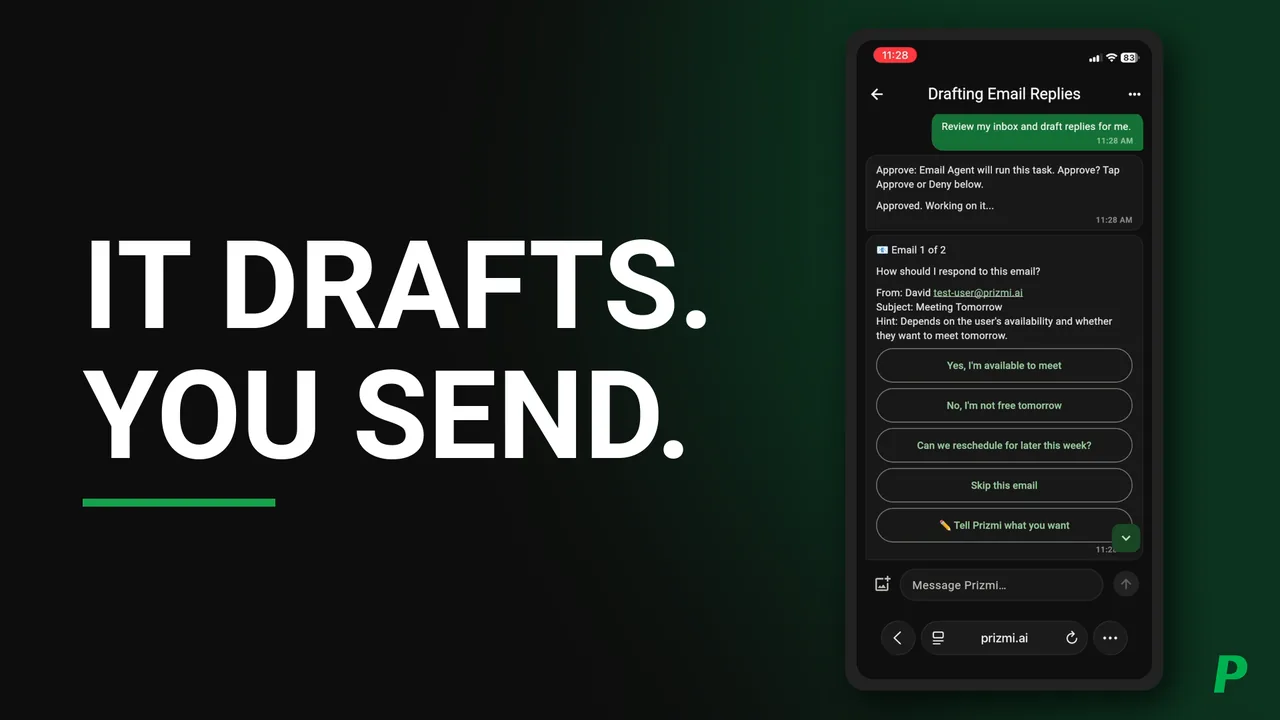
Prizmi writes drafts and saves them in Gmail. It never sends. You open the draft, change whatever you want, and press send yourself. The video follows two of them all the way into the Gmail drafts folder so you can see exactly where they land. Cleanup works the same way: emails go to Trash, recoverable for 30 days, never permanently deleted.
It also learns how you write, and you can tell it directly. The video sets a signature preference partway through, then runs the same inbox check again to show the new drafts picking it up. The last part covers two ways to run the check without typing it out each time: a shortcut you set yourself, and a recurring task that can be paused or cancelled whenever you want.
In this video
Transcript
Read what’s said in this video
Do you want a real assistant to help run your Gmail? Do you want an assistant that learns your writing style and receives feedback? Do you want an assistant that checks your email on a schedule so you never fall behind? In this video, I'll show how you can do all of that and more. Without further ado, let's get started.
Gmail is one of Prizmi's most useful skills. Gmail is a cloud skill, meaning that you don't need a computer to use it; you'd just need a Gmail account. Prizmi can check your inbox, search emails, read full emails, draft replies, compose new emails, and many other things. It's important to mention that Prizmi will not send emails or permanently delete emails. It will draft your emails ready for you to send. It can also send emails to trash instead of deleting them. Prizmi is designed this way, so you never have to worry about an unwanted email being sent or an email being deleted, and I think that's awesome.
Lastly, when writing draft emails, Prizmi will try to learn your writing style. You can also give Prizmi feedback and it will take a note and apply it moving forward. In this tutorial, I'll also show you how you can provide feedback.
I assume that you've already signed up, if not, please watch our videos on how to set up Prizmi. To let Prizmi manage your emails, you first need to connect your Gmail. To do that, you simply toggle the "Enabled" button. You'll then be presented with two options for connecting your account.
The first one is using an app password. This is the easiest and quickest way to get started. And the second one is using your own Google app. This way you would create your own Google Cloud project for scoped access. This is best for more technical users. In this tutorial, I'll show you how you set up an app password.
So basically you click here and there is a step by step guide in order for you to set things up. Basically, it shows each step with all the details you need to know, and you can easily follow it. So basically first you need to sign into your Gmail. Then, you open your Google account. Then you go to security. The instructions are also for the phone UI, if needed. Then you need to turn on two-step verification if it's not already set up. In our test account it's already set up, so that's important to keep in mind. And then you open the app password, and the instructions and the direct link are here. Then, you create an app password. Once you get the password, you just enter it here, and that's it. So, instead of reading through this, I'm going to show you how you can do it.
So first let's go to Gmail. I'll show you how you can exactly follow the steps there. So the first step says sign in. Obviously, we have already logged in here. Then, next it says, open your Google account. You need to click here. And then it says go to security, which would be here. And, you see the two-step verification, and next, it needs to be enabled. So if, for you, it's not enabled, you do need to enable that first, and it should be pretty straightforward.
If you have any issues, please let us know in the comments and we can create another tutorial to do that, but that's more or less outside the scope here. Next, you click on Home, and in the Search section here, you just need to search for "app password". And then you select "app password". It would ask you to enter your password again. You see here, that I had already created one before. If you want, you can create another one. So let's say, Prizmi or Gmail-Tutorial. Let's create it. Then it will show you the password for your account. Then, you just copy it and go back here. You paste it there, and then you enter the email address. Then you save and enable. As a side note, your email doesn't have to be the same email that you used to sign up. So it could be also a different email. In this case, they are the same and you just click on save and enable, and that's pretty much it. You are ready to connect and manage your email. For security reasons, I'm going to delete the app password that I just created, and I'll continue with the other one that I already had created.
All right. Now we are ready to run our Gmail using Prizmi. Let me just close this. So, for this, we set up a test email here. As you see, there are several emails from Google for security alerts. That's obviously because this is a test account and we add or remove access. So this is very normal and they are all safe. And you see here there are several of them from Google, and there are a couple of sample emails here. David is asking if we want to get lunch tomorrow. This is, you know, a pretty old email. And there is another one asking for a meeting tomorrow.
So I'm going to show you step by step, how you can basically handle your email. So, on a day-to-day basis you just ask Prizmi the questions that you may have.
So I'll go back here and go to chat. The first thing I'm going to ask Prizmi is, "do I have any unread emails?" So assuming that, you know we don't exactly know if we have any unread emails, and just see what the Prizmi does. It'll ask you to approve it. And, after a while, if you want, you can go to your dashboard and toggle off approval if you feel comfortable. But at the beginning, it'll always ask you for approval as long as the toggle is on. So here it says, you have 29 emails, and these are the latest, and obviously, if you recall in our email, these are the ones that show up.
So, then I'm going to ask Prizmi to do some cleanup. So in order to do that, I'll ask Prizmi to "find all emails from Google with the subject Security alert", because I want to clean them up so we have a more tidy inbox. It'll ask you to approve it. And now, Prizmi is doing some search in your inbox. Obviously, you know, sometimes it may take a while in order to make sure that all the emails are included. And as you can see here, it says, I found at least 19 emails from Google with the subject Security alert and here are your emails converted to your local time, so it will show you based on your local time, and you see, there are many of them. So, in order to have a tidy inbox, I'm going to ask Prizmi to trash them. We approve it, and then it will try to figure things out. You don't have to tell again what you are trying to trash, it would know exactly what it's done, and it says, I found 19 emails to trash, and these are the first ten plus 9, and, do you want to move? So because now you're asking Prizmi to trash your emails, it would ask you to approve it to make sure there are no unintended consequences. Prizmi would not delete, it would just send them to trash. And then I would say yes. Then it would go and try to do the work and to trash all those alerts that don't mean much in our context. It says that I trashed them and you can recover them within the next 30 days. And I can go back here and just refresh. And voila, you see that, all the security alerts were sent to trash. Awesome.
So next, I'm going to ask Prizmi to check my inbox and prepare drafts for me. And, this would show you how you can basically interact with Prizmi. Prizmi is quite intelligent and it will not create some random emails for you. To help you, in your dashboard, you see some examples that we think would be very helpful to have. So in this case, you can just click on any example, and it would be copied to your clipboard, and then you go here and you just say, review my inbox and draft replies for me. So what happens in this case, Prizmi would look at your inbox, it would see if there is any email that needs a reply. And if it doesn't have enough context, it would ask you how you want to reply. If it does have the context, meaning that, in your previous emails, you made your intention very clear, it will go ahead and prepare emails for you.
So here you see, I have reviewed the 10 unread emails in your inbox. 8 of them are informational emails, so you can understand that you don't need to really reply to "no reply" emails from Google, you know, you don't need to reply to these ones. Prizmi has correctly identified 2 emails that need your input before it can draft a reply. So what are the 2?
This is one that's asking for a meeting tomorrow, and there is another one, which David is asking for lunch tomorrow. So what happened here is that Prizmi recognized that, hey, I don't know what you exactly want. So I'm going to prepare some options for you. So, you could say, I'm available to meet, I'm not available, or ask to reschedule, or you can even skip this email if you want. And there is another option. If none of this would work, you can just tell Prizmi what you want. So there are 2 emails, and the other one is asking for lunch tomorrow. You can say yes, sounds great, no, or suggest a different day or skip this email. And you can always skip all the remaining emails in case you have many, many emails. So, what I'm going to do is I'm going to ask Prizmi to tell David that I cannot do tomorrow, but can we do Monday instead. So in order to do that, you can say tell Prizmi what you want. And, you go down here and you just type, "tell him, I'm not available, Can we do Monday instead?" And then, it says confirm above, and your instruction is that, tell him I'm not available tomorrow. Can we do Monday instead? And if you want, you can continue again or confirm or cancel. So if you want you can try to edit, then you can go, and say, instead of Monday, I can say, "tell him I'm not available. Can we do Tuesday instead?" It's like a real assistant, right? So you say, oh, by the way, I'm not going to do it. I'm not able to do it on Monday, can we do Tuesday?
And, you go up and it says, can we do Tuesday instead of Monday? So what you expect is that you would get a draft that says can we do Tuesday, not Monday. So I will confirm and then here, for the lunch tomorrow, I can say, yes, that sounds great. And that's it. So, now Prizmi knows that you're all done. And it will go and prepare your drafts. And it says, I've drafted 2 email replies for you.
And then what happens is that you go to your Gmail and you go to your drafts and there are 2 drafts ready for you. So as you see here, the 1st one says, I'm not available tomorrow, but could we do Tuesday instead? Isn't it awesome? So Prizmi did not get confused with mixed instructions. And then for lunch tomorrow, yes, that sounds great.
What time and place were you thinking? Isn't it great? So then you can just review each draft and send them. It's as easy as that.
So another thing that I want to show you is, asking Prizmi to read an email. For example, we saw that Prizmi said, you have 2 emails and one of them is asking about the meeting tomorrow from David, and it asks you, are you available or not? So in some cases you may want to just be able to read the full email. So you can ask Prizmi to read the email from David about the meeting tomorrow for me. And then when you do this, then you expect Prizmi to read the email for you, so you can, in case it's needed, make a better decision. So that's it. You know, this is like from David, the subject, when, and "hey, hey, are you available to meet tomorrow?" If I go back here and look at this email, it's exactly what David wrote.
One cool thing about Prizmi is that it learns your style and writes emails in your own style. That said, what you can also do is to give Prizmi feedback on how you want your emails to be written, and Prizmi will take a note and try to apply it moving forward. You just need to make sure you are clear on which skill specifically you are giving feedback on, because obviously Prizmi has a lot of skills.
So in this case, we can just say "moving forward, when writing emails, sign them as 'Cheers,'". So what we want is we want to sign our emails differently. You can give any kind of feedback that you want in terms of how you want your emails to be written, to be more formal, more fun, and anything that you want. So then I can send this. So, you see here, it says, "got it, I've noted your feedback and will apply it to future email drafts". So now, what we can do is we can try to see if it can actually apply our feedback. So to show you, I can first discard the drafts that were created before.
I can also show you how you can check your emails very quickly. You know checking your emails is something that you do on a regular basis. You can either schedule a recurring task and ask Prizmi to check your email on any schedule you want. For example, every weekday, at 9 AM and, you know, 3 PM. Another way is to create a command shortcut. So I'm going to show you both of them in this case. So let me show you how you can create a command shortcut.
So you go to your dashboard, and then you go to your commands, and you add a command. So in order to create a command, you just need to make sure it starts with a dollar sign, and then you say email. You can put anything that you want. You can use whatever is easier for you to remember. And then you can just write, "review my inbox and draft replies for me". That's it. You can always edit or delete your command.
Now, if I go back to my message here, as you see, I have no drafts here, and what I can do, I can just say, $email. And what this means is Prizmi would unpack your command, and it would just go ahead and do what it needs to be done. So it's just working to find the emails that need a reply. And once it finds them, then it would get back to us if anything needs a reply. And rest assured, it's the same 2 emails that we discarded. Prizmi is going to tell us what options we have. I can just quickly go through this. Now, it says, I drafted 2 email replies in total, the 2 that we saw, and then I can go here, refresh this page. And you can see, "Cheers," in the signature. The other one, "Cheers,". See, isn't it awesome?
So now that we have this, I want to show you another way for you to check your emails. The 2nd way that you can do this is schedule a recurring task.
So, let me first discard these drafts again so we can have some emails to work with. And then I go to inbox, and then I go to these 2 and mark them Unread so Prizmi would try to prepare draft replies for us.
Now, if you look at the time it's 3:16pm now, so I can just schedule a recurring task that would be triggered, you know, in less than 15 minutes, so I can show you how it works. So basically what I can say is "every weekday at 3:30pm, review my inbox, and draft replies for me". And, just to note, you can say every day, and you can say at 3:30 PM and 9 AM, and you can ask for any kind of schedule that works for you. For this tutorial, I'm just asking Prizmi to do it every weekday at 3:30 PM, review my inbox and draft replies for me.
So I send this. Approve it. And you can see that the job has been scheduled every weekday, Monday to Friday, at 3:30PM, your local time, for me it's Pacific time, and the 1st one would be, today at 3:30 PM, and you can pause or cancel the task here. In addition to your chat, you can also always see your tasks here right in your dashboard. As you see here, and you can pause it or cancel it. For example, if you are on vacation, you can just pause it until you are back.
So, now it's 3:18. We'll wait until the task runs, then we can see, how it prepares the emails and whether it takes our feedback into consideration. So I'll be back in about 12 minutes.
Okay, we are back, now it's 3:29 PM. We expect the job to start running in one minute, and then we will see the results. So our inbox is the same as before.
We obviously deleted or cleaned up some of those warnings, and this is just one new one that showed up here. So, right now we have no draft prepared here.
So, once we reach the time, I expect that the job would run and you will see the results in our chat. Just as a general note, whenever you schedule your recurring task for your emails, you don't have to worry too much about not being around to respond. If you don't reply or choose an option within a certain time period, then Prizmi would skip the emails.
Now, you can see Prizmi ran the job, and it found 2 emails as expected, the same as before, and the options are presented to us. So you can just go ahead and, say, yes, I'm available to meet, then I'm busy tomorrow, but maybe another time, just giving different options. And then, Prizmi would run and prepare the replies for us. See, I have drafted 2 emails in total and, do you want to adjust anything, which you could potentially. So, and you see here, the drafts are ready for us. The 1st one, I'm busy tomorrow. I'd like to grab lunch another time and you see the cheers. And the meeting tomorrow is I'm able to meet, what time works for you? Cheers. Awesome.
It shows that, you can basically hand off your emails to Prizmi and you can provide the feedback. And your feedback would stick around. And also just as a final note, if you want to give more feedback, you can always do it, and if your feedback contradicts something earlier, Prizmi would take the latest one into consideration. So you don't have to worry. You just talk to Prizmi and tell it what you want and the rest, like a human assistant, it should be able to take care of things.
I hope you find this tutorial useful and please remember to like and subscribe. We'll make plenty of tutorials for all of Prizmi's skills, and that way you'll get notified right away. If you have any questions about the video, please let us know in the comment section below. And if you have any questions about your account, please feel free to use the contact page.
Thank you and have a great day.
Questions about this video?
Ask in the comments on YouTube and we’ll answer there, so the next person who wonders the same thing finds it too. If it’s about your own account, use the contact form instead so nothing private ends up in public.